Категории
Смотреть все >
-
 Промышленная электротехника и автоматизация
-
Приборы, измерители и датчики
-
Оборудование и приводные системы
-
Метизы, инструменты и крепеж
-
Промышленные химикаты и добавки
-
СИЗ и упаковочные материалы
-
Энергетика и промышленные запчасти
-
Прочие промышленные товары
-
Computer & Accessories
-
Sports & outdoor
-
Toy


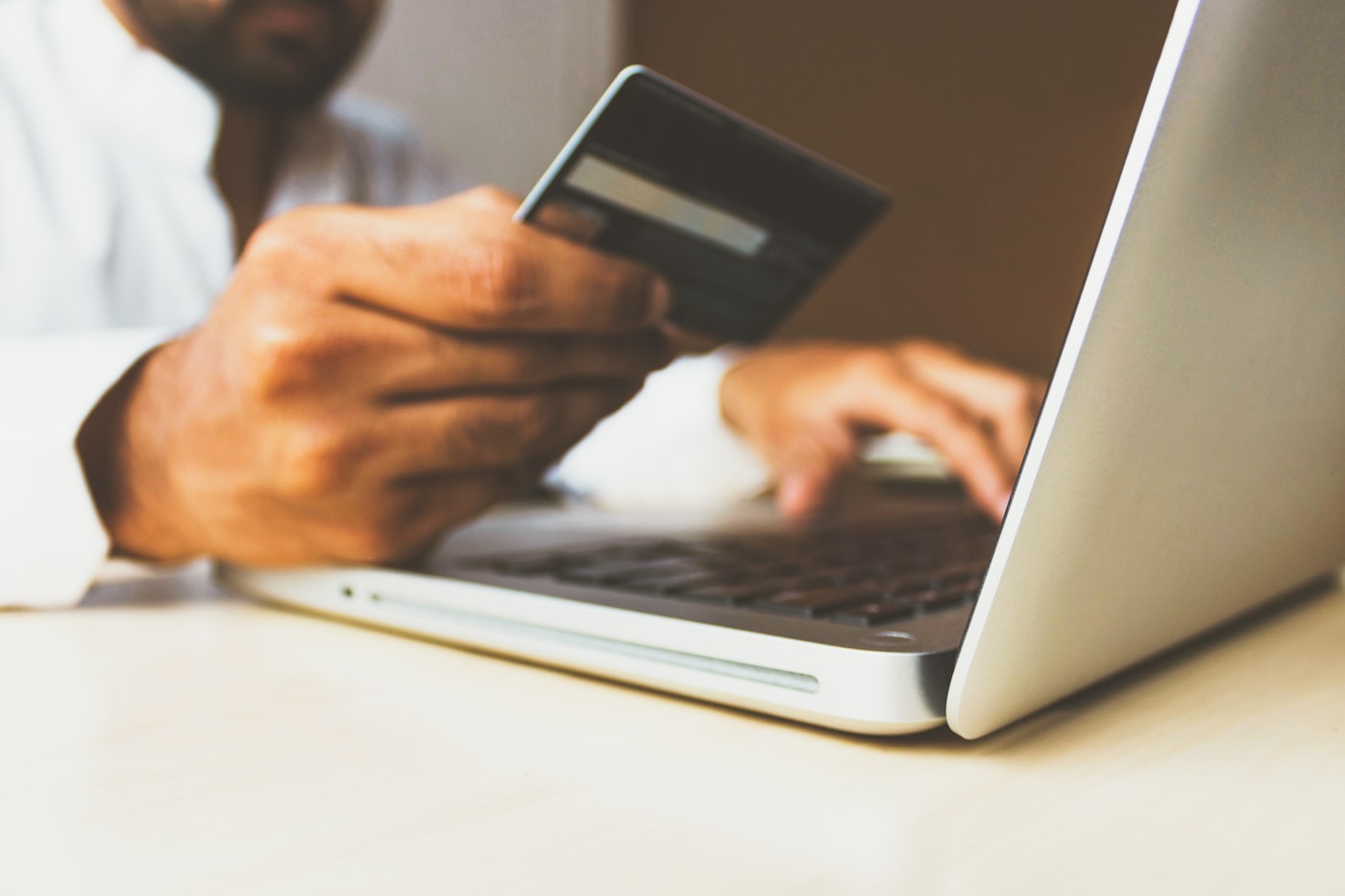
Куда загрузить подтверждение банковского перевода: заказы и пополнение кошелька
Руководство покупателя
Выбрав офлайн-перевод (BSPB, DBS, OCBC и т.д.) на странице оплаты checkout, покупатели часто спрашивают: куда загрузить скриншот перевода? Это отличается от офлайн-пополнения кошелька — см. таблицу ниже.
Два сценария — два места загрузки
| Сценарий | Где загружать | Примечание |
|---|---|---|
| Пополнение кошелька офлайн | Мой аккаунт → Кошелёк → модальное окно Offline Recharge Wallet | Сумма, Transaction ID и изображение подтверждения — затем ожидание одобрения |
| Оплата заказа переводом | Сначала оформить заказ → затем в деталях заказа | На checkout нет поля загрузки; подтверждение — через Purchase History |
Заказ: пошагово
- На странице оплаты выберите офлайн-способ и запишите реквизиты получателя;
- Выполните перевод в банке;
- Нажмите Complete Order — появится сообщение: Please submit payment information from purchase history;
- Откройте Мой аккаунт → Purchase History (история покупок);
- Зайдите в детали заказа;
- Если подтверждение ещё не отправлено, нажмите Make Payment;
- Укажите Amount, Name, Transaction ID, загрузите Payment screenshot и подтвердите.
После отправки статус оплаты — Submitted, ожидается проверка платформой.
Частые вопросы
- Почему нельзя загрузить на checkout? Схема «сначала заказ, потом подтверждение» отделена от пополнения кошелька.
- Нет кнопки Make Payment? Подтверждение уже отправлено или заказ не с офлайн-оплатой.
- Что должно быть на скриншоте? Сумма, счёт получателя, дата/время и номер операции банка.

Поддержка на территории, получение на пороге.
Контактная информация
- Адрес: Санкт-Петербург, 3-я линия В.О., 24
- Телефон: +7 812 509 12 45 (Пн–Пт: 8:00–20:00)
- Эл. почта: sales@longwang.ru